
How to show subscription prices on Shopify
A shopper choosing between one bag of coffee and a subscription needs to know what they’ll pay today, what they’ll pay next time and when that charge happens. Put those details beside the purchase options and repeat the selection in the cart.
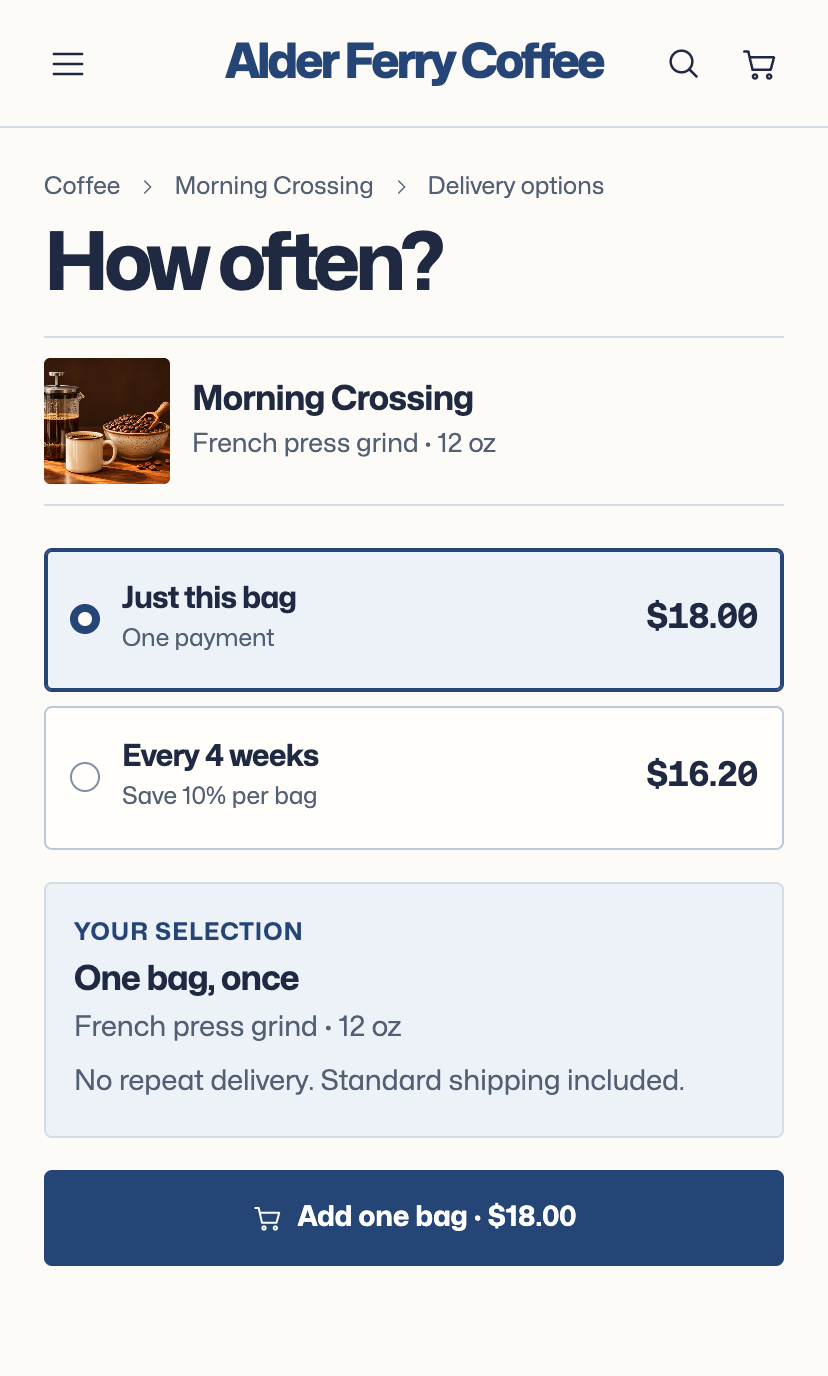
Put both prices beside the plan picker
Pick a product that shoppers can buy once or on repeat. Open its page on a phone and look at the choices above Add to cart. Can you read each price, tell how much product it buys and see how often it arrives? A savings percentage helps once those details are clear.
Alder Ferry Coffee shows “One bag, $18” beside a repeat delivery at $16.20 every four weeks. The button repeats the price of the selected option. A shopper can see the $1.80 difference and decide whether they want another bag in four weeks. See Alder Ferry’s purchase options
If you offer prepaid plans, show the amount charged today as well as the cost per delivery. For example, three $15 deliveries paid in advance cost $45 today. If an introductory price ends after the first order, show the regular charge beside it. Use the selected variant’s price and selling plan so a change of size or quantity updates the amounts. Shopify’s subscription display guidance
Carry the choice into the cart
Show the plan under the item name. Include the quantity, delivery interval and next charge amount. If the subscription app supplies the next billing date, show it there too. If billing and shipping happen on different schedules, label each one so the shopper knows when money leaves their account and when the product ships.
In Alder Ferry’s cart, someone choosing repeat delivery could see both the first charge and the next one. An edit link let them switch to a single bag before checkout. How Shopify themes show a selling plan in the cart
Try both orders on your phone
- Add a one-time purchase. Open the cart and proceed to checkout. Check that the order shows one charge and the expected quantity.
- Go back and choose repeat delivery. Change the variant or quantity and check the amount due today, the renewal amount and the interval against your plan settings.
- Put one of each in the same cart. Can you tell which line renews? Edit the recurring item and make sure the one-time purchase keeps its price and quantity.
After launch, review support questions about unexpected charges and count how many first-time subscribers reach their second paid order. Compare groups that have both had time to renew. If more people subscribe but fewer stay for the second delivery, revisit what the first screen promises. Explore ongoing Shopify conversion work