Shopify search results get no clicks. What should you fix?
Open Shopify’s Searches with no clicks report. Pick a phrase shoppers use often and try it on your phone. Look at the first few results. Can you tell which item fits what you asked for?
Choose a search you can learn from
In Shopify admin, go to Analytics → Reports and open Searches with no clicks. Each row shows a phrase that returned results and how many sessions used it without a result click. Look up the same phrase in Searches by search query for the same dates. If two sessions had no click, it matters whether the phrase appeared in two sessions or two hundred.
Pick a recurring phrase for something you sell. If the search returns an empty page, use the separate Searches with no results report. Shopify measures activity on the full results page and excludes clicks in the suggestions that appear as someone types. See what Shopify counts in its search reports.
Match the fix to what the shopper sees
Enter the exact phrase in Search & Discovery → Search preview, then choose View on your store. A custom theme or search app can show a different result order. On your phone, submit the search and inspect the first screen before you scroll.
- The best match is buried. Find the first item you would recommend to someone asking for that product. If it sits below several weaker matches, try a product boost for that phrase. Preview the order again.
- The right items look identical. Choose two results and name the detail a buyer needs to tell them apart. Show that detail on the result card, such as connector type, pack size or lens diameter.
- The first match is sold out. Check whether a shopper can see an available alternative in the size or fit they searched for. Make availability visible before they have to open each product.
Change one thing and save a screenshot of the same search before and after. Shopify’s search preview and product boost instructions.
Why a search for “cap for 50mm lens” needs a size check
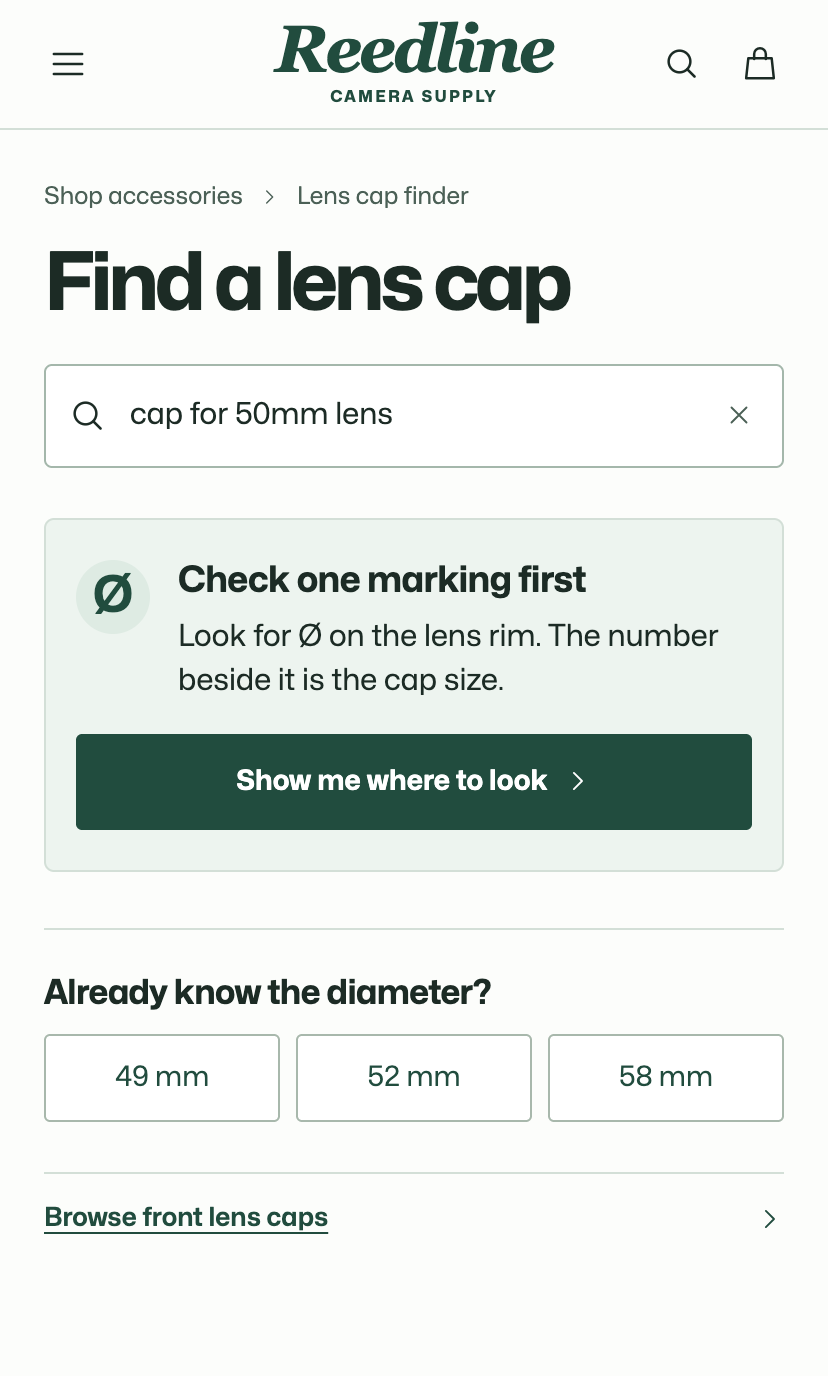
At Reedline Camera Supply, 50 mm describes the focal length of a lens. A replacement cap fits the diameter marked on the rim. A shopper could type the number printed on the lens, see a page full of caps and still have no way to choose one.
Reedline kept the search phrase on screen and showed shoppers where to find the Ø marking. Someone who found Ø52 could then see which 52 mm caps were in stock. Search success went from 62% with the original search to 83% with guided search. See Reedline’s search screens and measured results.
Check whether the change helped
Write down the phrase, the change and the day it went live. Compare equal periods with the same weekdays. For that phrase, compare sessions with no result click against all sessions that searched it in each period. Keep both counts beside the percentage so you can spot a quiet week.
For example, 12 no-click sessions out of 40 is 30%. Six out of 40 is 15%. If nobody searched the phrase in the second period, there’s nothing to compare yet. Allow up to 72 hours for the report to catch up, and note any stock changes or promotions that might explain the difference. Shopify’s report definitions and timing.
If several searches keep leading shoppers to the wrong products, a Shopify CRO audit can help you decide which fix to tackle first.