
How to show delivery dates before Shopify checkout
When someone needs a gift by Friday, “ships in two days” leaves a question open. Put an estimated arrival date beside the buy button, then check that the same order tells the same story in the cart and at checkout.
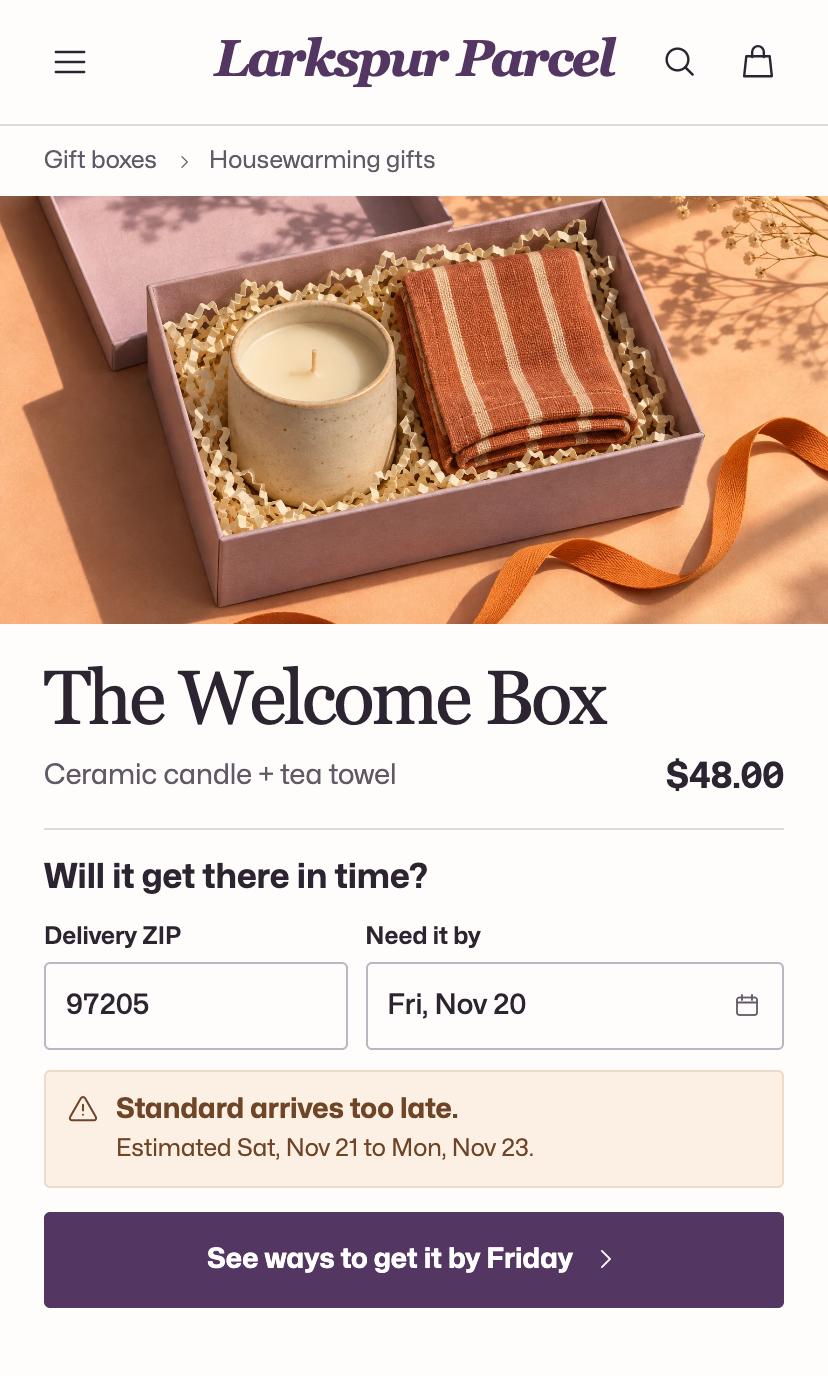
Start with a date your team can stand behind
Pick one product, one shipping service and an order you recently fulfilled. Count the business days from purchase to handoff, then from handoff to delivery. Check what happens after your daily cutoff and on weekends. That gives you a way to spot an estimate that quietly leaves out packing time.
Shopify can show delivery estimates at checkout. Manual estimates combine your fulfillment time with the shipping rate’s transit time. To show an estimate earlier, check whether your theme or delivery app offers a product-page block that uses the destination, variant and shipping method. Give the block a test order before you use its dates across your store. Shopify’s delivery date options
Give shoppers a useful answer beside Add to cart
Ask for a ZIP or postal code if the destination changes the date. Show the method and an arrival range together, such as “Standard delivery, estimated November 21 to 23.” If someone needs it by November 20, they can decide whether to check express delivery or pickup. Show the extra cost alongside a faster option when you know it.
Larkspur Parcel used that approach for gift boxes. A shopper could enter a deadline, compare delivery with studio pickup and review the choice in their cart. Gift conversion moved from 3.2% to 4.1% across the redesigned gift flow. See Larkspur’s delivery and pickup screens
Test two ZIP codes and a pickup order
- A nearby address. Choose an in-stock variant and enter a ZIP code close to your fulfillment location. Record the standard delivery range. At checkout, enter the full address and select the same rate. If the date changes, make the revised estimate easy to see before payment.
- A farther address. Repeat with a ZIP code in a slower shipping zone. Change the destination in the cart. Check that the earlier date clears and that any faster service has the right price.
- A pickup order. Choose a location that stocks the item. Check the location name and when the order should be ready. Switch back to shipping and make sure the cart shows a shipping estimate again.
If you can’t estimate arrival for a particular address, tell the customer where they can check. “Enter your full address at checkout for available delivery options” gives them a next step.
Check the promise after the order arrives
For a week of orders, compare the date shown with the delivery or pickup-ready date. Look separately at orders placed after cutoff. If one shipping zone regularly misses its range, adjust that estimate before extending the feature to more products. For the rest of the buying path, see what a Shopify CRO audit covers.